TCP/IP Troubleshooting for Computers Running the
Classic Macintosh Operating System
If you have checked all of your settings...
...and you still cannot connect, verify username & password, view web pages and/or download mail, try the following:

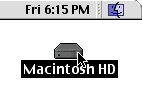
( 1 ) Double-click on the hard drive icon on your desktop (you may have named yours something different).

( 2 ) Open the System Folder in the hard drive.

( 3 ) Look for the Preferences folder inside the System Folder. You may wish to click on the "View" menu and select "as list" (System 8.X) or "by name" (System 7.X) to make it easier to find items.
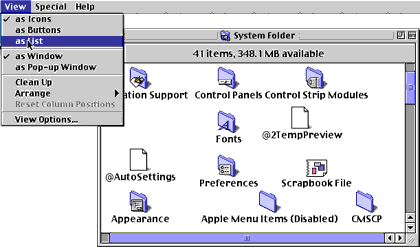


( 4 ) Open the Preferences folder and view by list/name again.

( 5 ) Drag the appropriate Preferences files (SEE TABLE BELOW) to the Trash (but do not attempt to empty the trash yet). New copies of these files will be created when your computer restarts.


Control Panel Corresponding Preference File(s)
MacTCP MacTCP Prep
TCP/IP TCP/IP Preferences
PPP Remote Access (Folder)
Remote Access Remote Access (Folder)
ConfigPPP PPP Preferences
FreePPP PPP Preferences or FreePPP Preferences

( 6 ) Restart the computer. You will need to re-enter the appropriate settings for any of the Control Panels whose corresponding preferences were deleted. After re-entering settings and testing to see that your connection works, you may safely empty the trash.

( 7 ) If you are using MacTCP and are having problems connecting (e.g. the Open button is grayed out in ConfigPPP), open the MacTCP control panel and do the following:

  1. Select LocalTalk (single-click on it).
  2. Re-select PPP, MacPPP or FreePPP (whichever you are using).
  3. Close MacTCP and restart the computer.


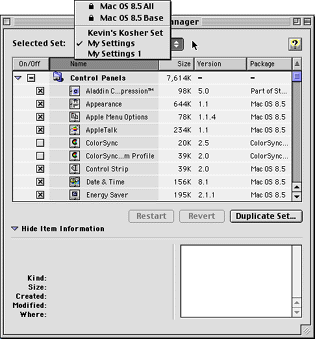
( 8 ) If you suspect your problems may be due to incompatible system extensions, use the Extensions Manager Control Panel to save the current set of active extensions for your computer. Next, select MacOS 8.5 All (substitute your actual system version for "8.5") from the Selected set: menu and restart your computer. Enable non-MacOS extensions one at a time, restarting each time you enable something and testing if what you enabled is causing the problems you are experiencing. Consult your Macintosh Guide for further information.


If the above steps do not work: Included with every Macintosh is a floppy disk titled Disk Tools that contains a program called Disk First Aid. Shut down, then start your computer with the Disk Tools floppy disk in the drive (your computer should now boot from the Disk Tools disk). Run Disk First Aid from this floppy disk to repair your hard drive. Disk First Aid versions 8.2 or higher (included with OS 8) run quite well, but older versions are frequently unable to repair errors. Norton Utilities, TechTool Pro or other third party disk repair software may also be used to repair damaged files on your hard drive.

Apple Computer Technical Support can be contacted at 1(800)SOS-APPLE.

Help Topics General Macintosh Help Home
PPP Remote Access ConfigPPP FreePPP TCP/ IP MacTCP
©2001 Kevin Pedersen. All rights reserved.