|
The Remote Access Control Panel is accessed via the Apple Menu in the upper left of your screen, inside Control Panels (installed by default in System 8.5.X). If you do not know what software you have, go to General Macintosh Help for instructions. in the upper left of your screen, inside Control Panels (installed by default in System 8.5.X). If you do not know what software you have, go to General Macintosh Help for instructions.
|
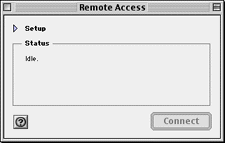
( 1 ) If the Remote Access Control Panel looks like the window to the left, then click on the small triangle to the left of Setup to reveal the next window.
|
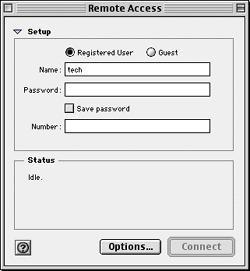 |
( 2 ) In the Remote Access window to the left, check the circle to the left of Registered User.
( 3 ) Click in the box to the right of Name: and enter your dialup login or username, all lower case with no spaces. Do not include the @isp.net of your email address (e.g. @simplyweb.net).
Note: Your dialup username and password may be different from your email username and password. |
( 4 ) Click in the box to the right of Password: and enter your dialup password, with no spaces.
( 5 ) Check the box to the left of Save password if you do not wish to be prompted for it every time you connect (this will not affect the password prompt when checking email).
( 6 ) Click in the box to the right of Number: and enter your dialup access number provided by your Internet service provider. If your computer's phone line has call waiting, add *70, in front of the phone number (including the comma). If the access number is outside your area code, then add 1(AreaCode) in front of the number. For example, if you were in the 706 area code, had call waiting and your access number was (619)860-0090, you would enter *70,1619860-0090.
NOTE: It is your resposibility to contact the operator to verify that an access number is local.
|
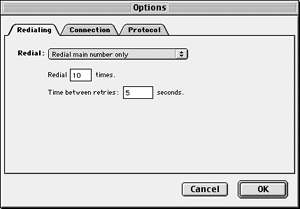
( 7 ) Clicking on the button labeled Options... will bring up the window to the right.
( 8 ) The window to the right is displayed when the Redailing tab is clicked in the Remote Access Options window. The redial settings are optional. It is recommended that you select Redial main number only from the Redial: menu, Redial 10 times, with Time between retries: 5 seconds.
|
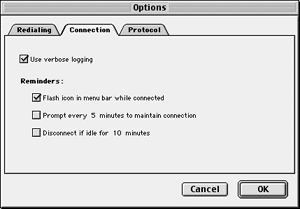
( 9 ) The window to the right is displayed when the Connection tab is clicked in the Remote Access Options window. Check the first two of four checkboxes as shown (check Use verbose logging and Flash icon in menu bar while connected).
|
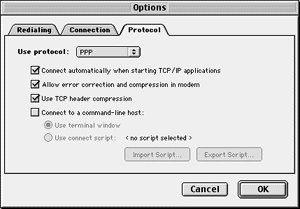
( 10 ) The window to the right is displayed when the Protocol tab is clicked in the Remote Access Options window. From the Use protocol: menu, select PPP. Below that, check the first three of four checkboxes as shown (check Connect automatically when starting TCP/IP applications, Allow error correction and compression in modem and Use TCP header compression. Connect to a command line host: is for advanced users and troubleshooting purposes only).
|
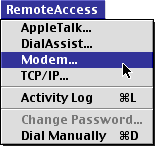
( 11 ) Look at the top of your screen in the menu bar for a menu labeled Remote Access. Click on the Remote Access menu and select Modem to bring up the Modem Control Panel.
|
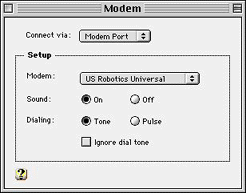
( 12 ) Shown to the left is the Modem Control Panel. Select the port that your modem is connected to from the Connect via: menu.
( 13 ) Select your modem from the Modem: menu. If your modem isn't listed, then either install the new modem's software or select a "Standard Modem" of the appropriate speed.
Hint: the items listed in the Modem: menu are actually just files called "Modem Scripts," which are contained in the following location:
Desktop/[Your Hard Drive]/System Folder/Extensions/Modem Scripts (folder)
If you have a modem script for your modem, you can just place it in the
above location for it to be accessible through the Modem control panel.
( 14 ) Click on the box in the upper left hand corner of the Modem window to close the window and return to the Remote Access Control Panel. If prompted to save changes, click Save.
|
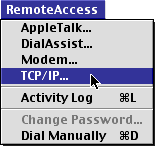
( 15 ) Look at the top of your screen in the menu bar for a menu labeled Remote Access. Click on the Remote Access menu and select TCP/IP to bring up the TCP/IP Control Panel. After setting up the TCP/IP Control Panel, click on the box in the upper left hand corner of the Remote Access window to close the window. If prompted to save changes, click Save.
|
| |
|
( 16 ) Click here to configure your TCP/IP Control Panel.
|
|
|
