|
The FreePPP Setup Control Panel is accessed via the Apple Menu in the upper left of your screen, inside Control Panels. If you do not have FreePPP, but have ConfigPPP instead, click here. If you do not know what software you have, go to General Macintosh Help for instructions. in the upper left of your screen, inside Control Panels. If you do not have FreePPP, but have ConfigPPP instead, click here. If you do not know what software you have, go to General Macintosh Help for instructions.
|
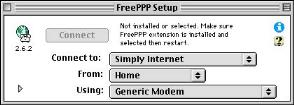
( 1 ) Locate FreePPP Setup on your hard drive and open it. If the window looks as shown to the left, click the triangle in the bottom left and more options will appear.
|
| |
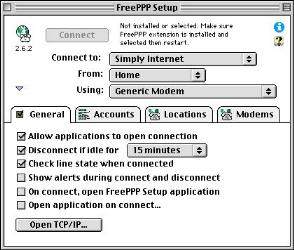
( 2 ) The FreePPP Setup window will expand to reveal more options. Your version may appear slightly different.
( 3 ) Click on the tab labeled General.
( 4 ) Check Allow applications to open connection.
( 5 ) Check Disconnect if idle for __ minutes and set the time to 15 minutes. Check Check line state when connected.
( 6 ) Click on the tab labeled Accounts.
|
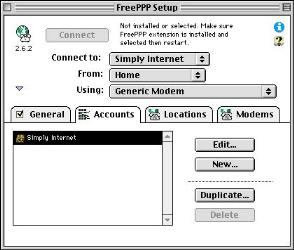
( 7 ) Under Accounts click on Edit if you are changing existing preferences, or New if you are setting up FreePPP for the first time.
Clicking on the Edit or New button will bring up the following window.
|
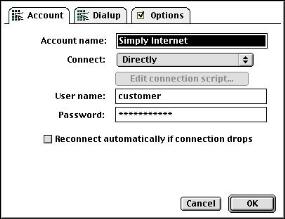
( 8 ) In the box to the right of Account name: enter the name of your Internet service provider (e.g. Simply Internet).
( 9 ) In the menu to the right of Connect: select Directly.
( 10 ) In the box to the right of User name: enter your dialup username, or login.
( 11 ) In the box to the right of Password: enter your dialup password.
|
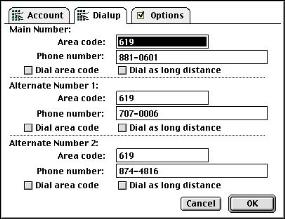
( 12 ) Clicking on the tab labeled Dialup brings up the window to the left.
( 13 ) Under Dialup you will need to enter your primary and alternate access numbers given to you by your Internet service provider.
( 14 ) In the box to the right of Area code: enter the area code of your access number.
( 15 ) In the box to the right of Phone number: enter your local access number.
( 16 ) Only check the box to the left of Dial area code if your local acccess number uses a different area code than the line that the computer is plugged into.
( 17 ) Repeat the previous steps if you would like to enter alternate access numbers (optional).
NOTE: It is your resposibility to contact the operator to verify that an access number is local.
( 18 ) Clicking on the tab labeled Options brings up the following window:
|
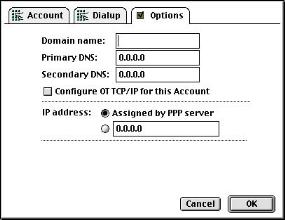
( 19 ) Under Options leave the box to the right of Domain name: blank.
( 20 ) In the boxes titled Primary DNS and Secondary DNS enter 0.0.0.0.
( 21 ) To the right of IP address: check Assigned by PPP server.
( 22 ) Click the OK button.
|
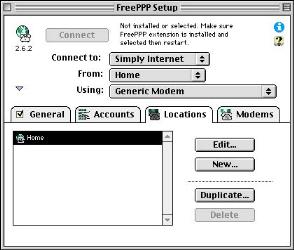
( 23 ) Now you will be back in the main window. Clicking on the Locations tab brings up the window to the left. You should have Home in the Locations window, or click the New button to set up a new location. If you set up or edit a location, click OK to return to this window.
( 24 ) Clicking on the Modems tab brings up the following window.
|
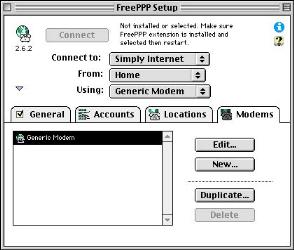
( 25 ) You will see the window to the left after clicking on the Modems tab. Click on the Edit button if you are changing existing modem preferences, or New if you are setting up a modem for FreePPP for the first time.
Clicking on the Edit or New button will bring up the following window.
|
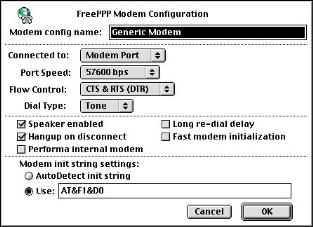
( 26 ) You will see the window to the left after clicking on the Edit or New button. Configure these options as recommended by your modem manufacturer or refer to the tables below.
Click on the OK button to save changes and return to the main window.
|
| |
| Flow Control Table |
|
Modem Model |
Flow Control Setting |
| All modems, except Global Village and Apple: |
CTS & RTS (DTR) |
| Global Village modems: |
CTS only |
| Apple Express Modems: |
NONE |
| External modems for PowerBook series |
CTS &RTS (DTR) |
| Internal modems on PowerBook series 500 or 200 |
NONE |
| |
|
Modem Init Table |
|
Modem Model |
Initialization String |
| Global Village |
AT&F1&D0E0 |
| US Robotics 28.8 |
AT&F1&H1&R2&I0&D0E0 |
| Supra |
AT&F2&D0E0 |
| Cardinal |
AT&F1&Q5\N3%E2%C2E0 |
| Zoom, Zoltrix, Intel |
AT&F&Q5&D0\N3E0 |
| For all others, try this generic one: |
AT&F1&D0E0 |
|
|
|
( 27 ) If you haven't already done so, you will need to configure your network Control Panel (e.g. TCP/IP or MacTCP). Go to General Macintosh Help if you do not know how to find out what network software you have, or select your software from the table below. |
|
|