|
The ConfigPPP Control Panel is accessed via the Apple Menu in the upper left of your screen, inside Control Panels. If you do not have ConfigPPP, but have FreePPP instead, click here. If you do not know what software you have, go to General Macintosh Help for instructions. in the upper left of your screen, inside Control Panels. If you do not have ConfigPPP, but have FreePPP instead, click here. If you do not know what software you have, go to General Macintosh Help for instructions.
|

( 1 ) Locate ConfigPPP on your hard drive and open it (see notes above). Your version may appear slightly different.
( 2 ) Select the port that your modem is connected to from the Port Name: menu.
( 3 ) Set the Idle Timeout (minutes): menu to None and the Echo Interval (seconds): menu to Off.
( 4 ) Checking Disable Auto Connect will prevent the computer from automatically connecting when you start internet applications, but will also prevent a known bug from making "ghost connections" when the computer is left unattended for long periods. If this box is checked then you will have to use the ConfigPPP control panel to manually open your connections.
( 5 ) Terminal Window should be unchecked, except for troubleshooting using AT commands.
( 6 ) Check Hangup on Close and Quiet Mode.
( 7 ) Click on Config... if you are changing existing preferences, or New... if you are setting up a new service and don't want to change your existing settings.
Clicking on the Config... or New... button will bring up the following window.
|
| |
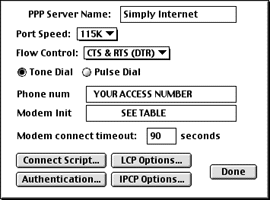
( 8 ) To the right of PPP Server Name: enter the name of your Internet service provider (e.g. Simply Internet).
( 9 ) To the right of the menu labeled Port Speed: select 115K for 33.6 and 56K modems, 57600 for 28.8 modems and 38400 for 14.4 modems. For all modems, use the highest setting that works.
( 10 ) See the table below for your modem's Flow Control: settings or consult the manufacturer's documentation.
( 11 ) Select Tone Dial.
( 12 ) In the box to the right of Phone num enter your local access number given to you by your Internet service provider. Only include 1 then the area code if your local acccess number uses a different area code than the line that the computer is plugged into. If your computer's line uses call waiting enter *70, (including the comma)before the phone number to disable call waiting, which may otherwise disconnect your modem while online.
NOTE: It is your resposibility to contact the operator to verify that an access number is local.
( 13 ) See the table below for your Modem Init or consult the manufacturer's documentation.
( 14 ) The Modem connect timeout: should be 90 seconds.
( 15 ) Click on the button titled Authentication... to display the window following the settings tables.
|
| Flow Control Table |
|
Modem Model |
Flow Control Setting |
| All modems, except Global Village and Apple: |
CTS & RTS (DTR) |
| Global Village modems: |
CTS only |
| Apple Express Modems: |
NONE |
| External modems for PowerBook series |
CTS &RTS (DTR) |
| Internal modems on PowerBook series 500 or 200 |
NONE |
| |
|
Modem Init Table |
|
Modem Model |
Initialization String |
| Global Village |
AT&F1&D0E0 |
| US Robotics 28.8 |
AT&F1&H1&R2&I0&D0E0 |
| Supra |
AT&F2&D0E0 |
| Cardinal |
AT&F1&Q5\N3%E2%C2E0 |
| Zoom, Zoltrix, Intel |
AT&F&Q5&D0\N3E0 |
| For all others, try this generic one: |
AT&F1&D0E0 |
|
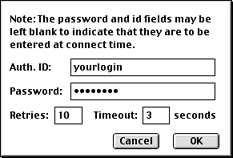
( 16 ) This is the Authentication... window. To the right of Auth. ID: enter your dialin username or login (this may be different from your email username or login if you have a slave account).
( 17 ) To the right of Password: enter your dialin password.
( 18 ) Click OK to save changes and return to the previous screen, then click the Done button when your settings are completed.
( 19 ) At the top left of the first window of ConfigPPP, click Open to dial into the Internet.
|
| ( 20 ) Optional Settings
|
|
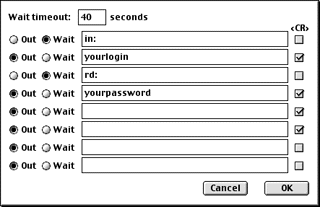
Connect Script... is accessed from the Config... window. Connect scripts are used when normal authentication does not work. This is sometimes necessary for older, slower Macs. Edit this screen as shown, substituting your dialup username or login for yourlogin and your dialup password for yourpassword.
|
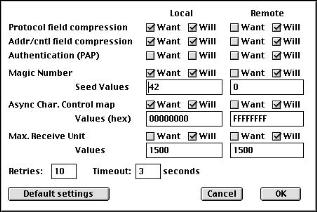
If you are in this window, click the Default settings button in the lower left, then click OK.
|
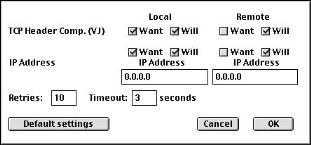
If you are in this window, click the Default settings button in the lower left, then click OK.
|
| |
|
( 21 ) If you haven't already done so, you will need to configure your network Control Panel (e.g. TCP/IP or MacTCP). Go to General Macintosh Help if you do not know how to find out what network software you have, or select your software from the table below.
|
|
|