 |
General Help for Computers Running the
Classic Macintosh Operating System |
 |
The first step in "getting under the hood" of your Macintosh is finding out what operating system you are using.
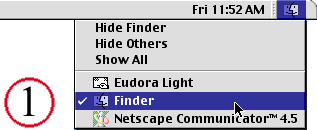
( 1 ) To get details about your computer, first click on the menu in the upper right-hand corner of your screen and select "Finder."
To find out About a program, that program must be checked in the Finder menu.
|
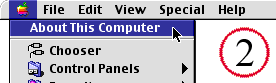
( 2 ) Next, click on the menu in the upper left-hand corner of your screen and select "About This Computer" or "About This Macintosh." Below is what you will see if you are running System version 8.5.1.

Your Operating System Version will determine what software you should use to connect to the internet. Older versions of the Macintosh Operating System (Mac OS) will display a slightly different window here, but the information given will be the same. Also, some system versions have multiple ways of connecting to the internet.
Whenever possible, you should use Apple's latest networking software, Open Transport. Below is a list of the operating systems that run Open Transport, and whether or not they have it installed by default.
- System 7.5.X... Networking Software Requires Custom Installation (Optional, Recommended - Click here to download Open Transport free from Apple).
- System 7.6.X and above... Networking Software is Installed by Default (Highly Recommended. Do Not Use Other Networking Software Such as ConfigPPP, MacPPP or FreePPP).
If you are unsure of what networking software to use, continue to the end of this page. Otherwise, follow the links below:
|
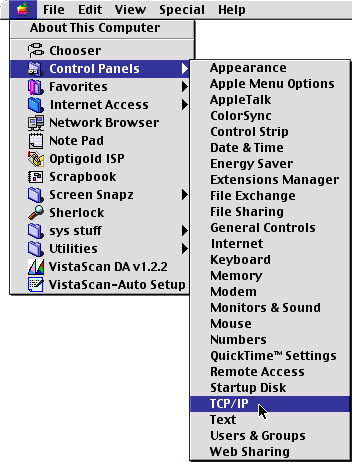 |
The best way to check what software you have installed, is to look in your Apple Menu, inside the Control Panels folder (older Macs may have to open the folder from the Apple Menu instead of viewing it through a sub-menu).
Look for the following files:
|
Note: in the case that you have ConfigPPP or FreePPP, *and* PPP or Remote Access, it is highly recommended that you use PPP or Remote Access. But first make sure that you
do the following:
- Open the TCP/IP control panel.
- Make sure that PPP is selected in the Connect via: menu, then close TCP/IP and save the changes (Click here for screenshots).
- If you find that Open Transport (TCP/IP) does not work, you can check
the Finder in the upper right menu, then hit the two keys command-F
(a.k.a. apple-F) at the same time to activate Find File, then "Find items on all disks whose name contains network software selector," double-click on the Network Software Selector program if it is found, and select Use Open Transport Networking, then restart your computer.
If you have configured your software and it still doesn't work, visit the TCP/IP troubleshooting page.
If you cannot find your software, you can check the Finder in the upper right menu, then hit the two keys "command-F" (a.k.a. "apple-F") at the same time to activate Find File, then "Find items on all disks whose name contains PPP (or part/all of the name of whatever you are looking for). Select the software you wish to configure from the table below: |
|
|
©2001 Kevin Pedersen. All rights reserved.
|